
|
HTML Localization and Internationalization |
HTML (Wikipedia) is the most popular markup language. Soluling Desktop and Soluling Cloud support HTML files (.htm, .html).
The end of the document contains links to get the full source code of the samples. After reading this document, we recommend reading a tutorial about how to use Soluling.
The simplest form of HTML is a static page. It only contains static elements, such as HTML and CSS. Localization of such a page is similar to data file localization or document localization. Soluling reads the original HTML file and extracts the text of the elements and the values of the localizable attributes, such as title and alt. Inline formatting, such as bold text and links inside a paragraph, stays inside the strings so that the translator can translate whole sentences. When building, Soluling creates a localized HTML file for each language. The localized file has the same structure and markup as the original, but the text has been translated.
The HTML options sheet specifies what elements and attributes are scanned and how the localized HTML file is created. For example, you can choose whether images and scripts are localized.

You can localize an HTML file either in Soluling Desktop or in Soluling Cloud.
 Desktop process
fi\Sport.htm.When you change the original HTML file, open the Soluling project and choose Home | Scan. Soluling keeps the existing translations, and you only translate the text that was added or changed.
 Cloud process
With Soluling Cloud, you localize the HTML file in your browser: upload the file, translate it in Translate, and download the localized files. You need a Soluling account. See the available Cloud plans.
Sport.htm), or drag and drop the file onto the page. Click Create.Click the project's green Translate button on the dashboard. Translate opens the project, and you can type the translations into the grid. Machine translation suggestions, translation memory, and spell checking are available there. You do not have to finish every language before moving on to the next step.
Inline formatting, such as bold text and links, is shown as protected tags.
When you change the original HTML file, upload it again, translate what is new or changed, and download the localized files again. On the dashboard, click the project's Update file button (the upload arrow), select the new file or drop it onto the page, and click Update. Existing translations are kept, so you only translate the text that was added or changed.
If you want to change the HTML options, for example, to localize images or scripts, create the project in Soluling Desktop, where you can set the options, and upload it to Soluling Cloud. See the Cloud tutorial.
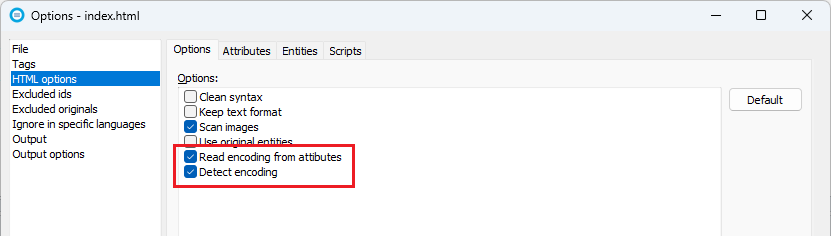
Modern HTML pages use UTF-8, so there is no issue with the character encoding. However, legacy pages use various encodings, such as ANSI code pages or ISO code pages. Most pages contain a meta tag that specifies the encoding used. By default, Soluling reads this tag to get the encoding used. To enable this, make sure the Read encoding from attributes check box is checked. If there is no encoding attribute, then Soluling tries to detect the encoding used. To enable this, make sure the Detect encoding check box is checked.
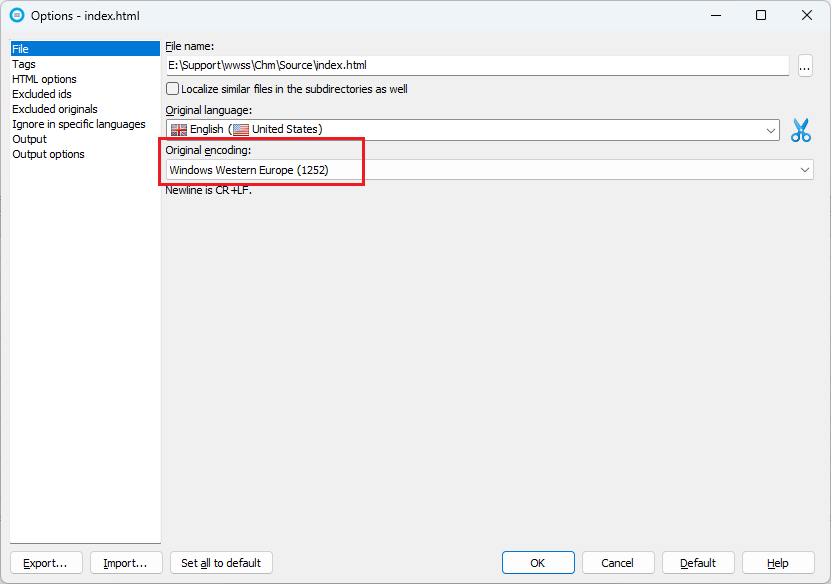
If the encoding is detected wrongly, you can manually set the original encoding on the File sheet.
Use UTF-8 in the localized files, especially if you localize to languages, such as Japanese or Russian, whose characters do not exist in the code page of the original file. Set the encoding of the localized files on the Output sheet.
Web applications use scripts in addition to HTML. The scripts are either client-side scripts, which use JavaScript or TypeScript, or server-side scripts, which use languages and frameworks such as ASP.NET, PHP, Python, and Ruby. Learn more about web applications.
GitHub and <data-dir>\Samples\HTML contain the following samples:
| Directory | Description |
|---|---|
| Static | A simple static page (Simple.htm) and the same page without the encoding meta tag (SimpleNoMeta.htm). Study this first. |
| Sport | A static HTML page that contains images. |
| Attributes | Pages that contain localizable attributes, such as the title tooltips of elements. |
| Change | A page that has been changed after it was localized. Shows how translations are kept when the page changes. |
| Encoding | A page that uses a legacy encoding (Windows-1252). See Encoding. |
| Html5 | HTML5 pages with and without element IDs (default.htm and noIds.htm). |
| Image | Pages that contain localized images and a style sheet. |
| Multiple | A project that contains several pages, including a page in a subdirectory. |
| Script | Pages that contain JavaScript scripts. |
| Segmentation | A page whose paragraphs contain several sentences, together with a translation memory (Local.tmx). |
| Svg | A page that contains inline SVG. |
| Test | Test pages that use ANSI and UTF-8 encodings. |
| Driving | A simple driving time calculator application. Uses TypeScript. |
| Plural | A sample that shows how to use plural messages. Uses TypeScript. |
| Simple | A minimal TypeScript web application. |
| Require | A web application that loads its scripts with RequireJS. |
Most samples contain the Soluling project, and the localized files are in the fi subdirectory. Html.sln is a Visual Studio solution that contains the web application samples.
You can configure how to localize your HTML file by selecting the item in the project tree, right-clicking, and choosing the Options menu. A source dialog appears that lets you edit the options. This source uses the following option sheets.
Read more about other document files such as DITA, Help+Manual, HTML, HTML Help, LaTeX, Word, PowerPoint, Markdown, RTF, and PDF files.
 Copyright © 2016-2026 Soluling Oy