
|
How to translate Soluling Cloud projects |
The process starts when you get an invitation email. This happens when the project owner has invited you to translate a project.
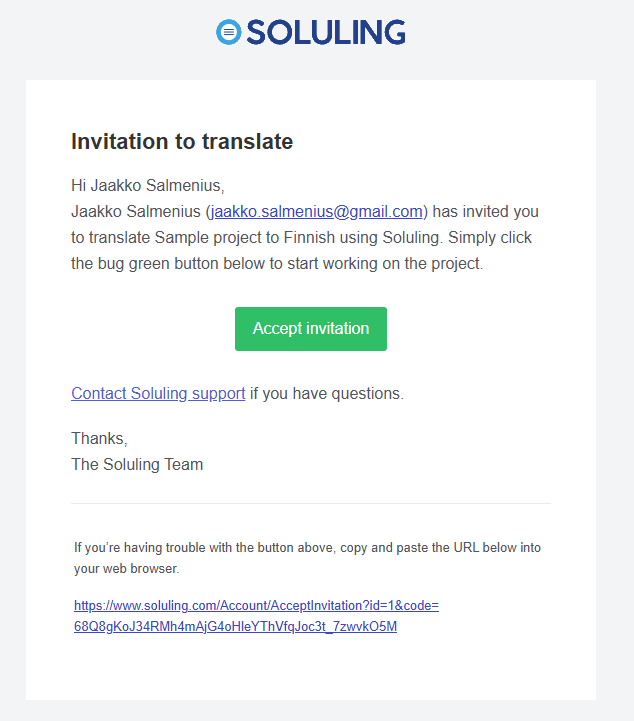
Click the Accept invitaiton button. This takes you to the Soluling web pages. If you don't have a Soluling account, you are redirected to a page where you create you account. Your name and email appear automtically. Enter the password, click I'm not a robot check box, and click the Create Account button.
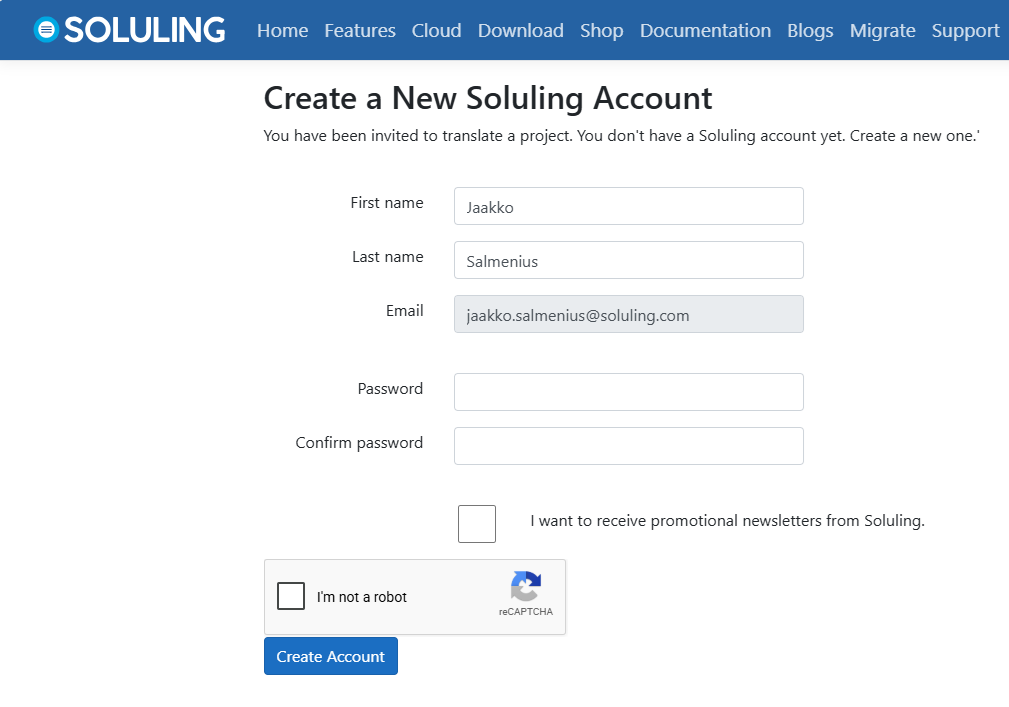
Now you have a Soluling user account and you can start translating.
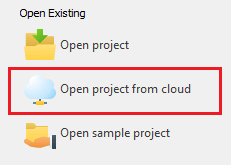
Start Soluling. Click the Open project from cloud button.
This open the Open Cloud Project dialog where you can log in and select a project.
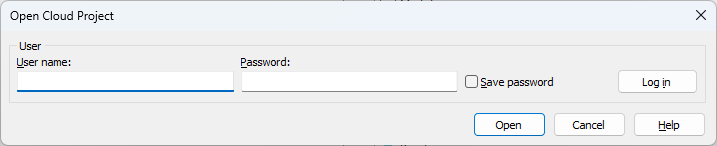
Enter the credentials you just created. Soluling gets the project(s) information from the cloud and show them in the list.
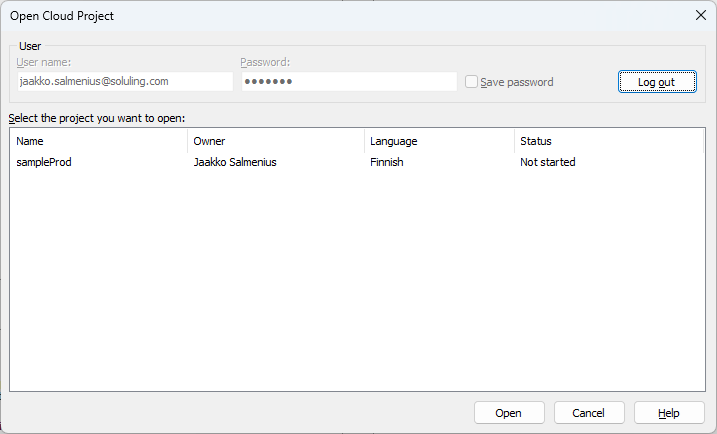
Select the project you want to open and click theOpen button.
Soluling downloads the project from the cloud and saves it locally in the Documents\Soluling\Cloud directory. Next time you open the project you can simply open the local project.
Once you have done the translation you need to upload the project back to the cloud. Click Translate | Upload ti Cloud ribbon button to upload.
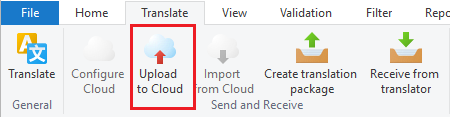
Now your translation have been upload to the cloud project when the developer or build process can get them.
This will be available in Q4 2026.
 Copyright © 2016-2026 Soluling Oy